Lodestar

Contents
  1. Overview
  2. Reviews

Overview

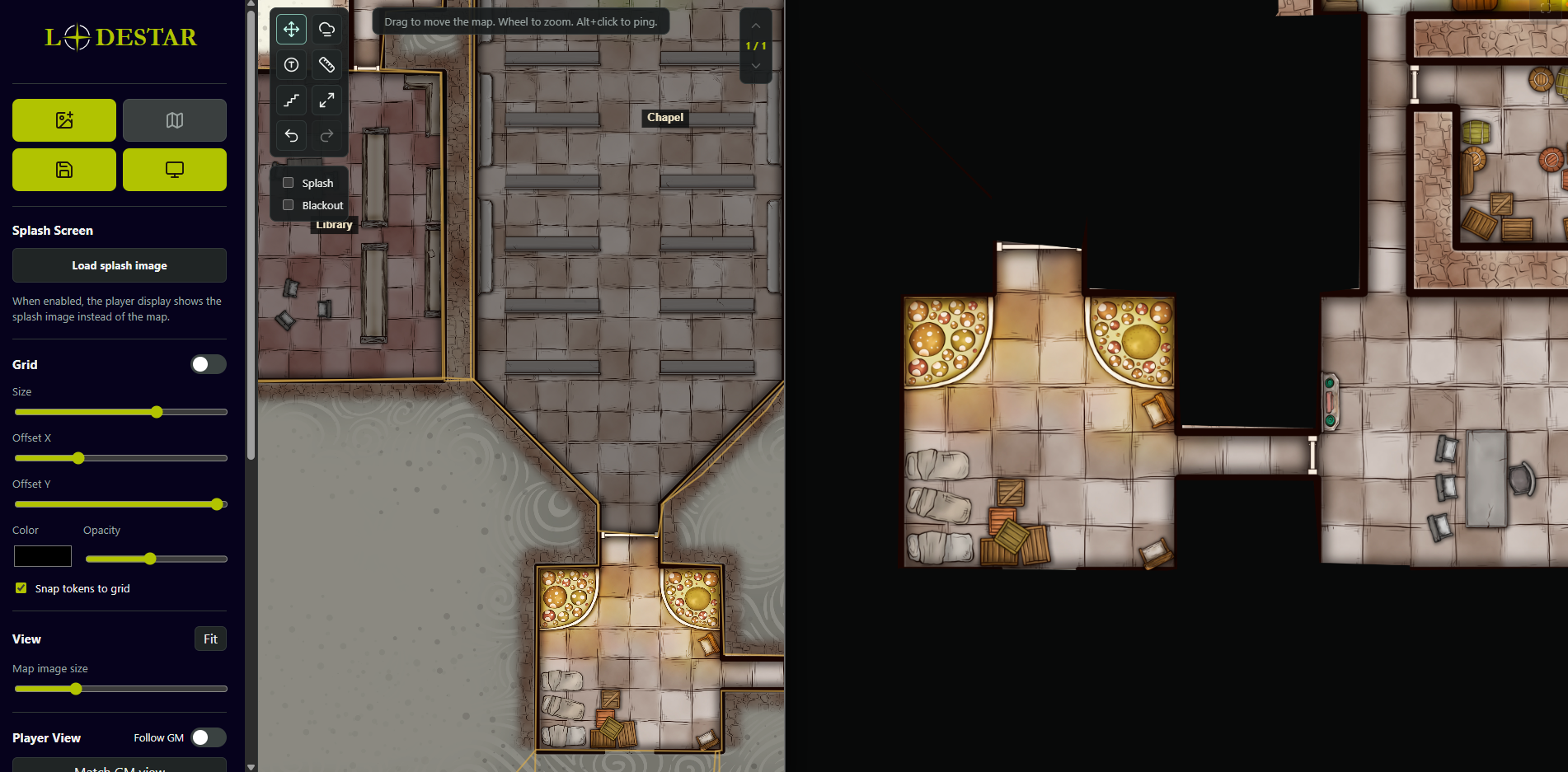
A local-first battlemap display tool for game masters. Cast a map with fog of war to a second "player" screen while you control everything from a private GM panel. Lodestar runs entirely in the browser with no build step and no dependencies. It runs entirely in your browser. No install, no account, nothing to download if you don't want to. You open it, load a map, click "Open player display," and drag that window over to your second screen. You control everything from your own DM panel, and your players only see what you choose to reveal.
Lodestar is completely free and open source, so you can use it, fork it, or tear it apart however you like.
Maps — load high-resolution map images from local disk; pan and zoom freely. Player display — open a second window, drag it to another screen, and cast the map to your players. The player window can go fullscreen. Fog of war - Trace polygon areas and click them in reveal mode to show/hide on the player display. - Name polygon areas with a GM-only label. - Paint or erase fog with a round or square brush of adjustable size. - GM sees fog as an adjustable tint/opacity; players see solid black. Multi-floor — build multi-level locations; each floor has its own map, fog, tokens, and stairs. Navigate with the on-screen floor widget. Stairs — place GM-only staircase markers that link floors; they scale with the grid and zoom and are invisible to players. Tokens — drop, drag, label, color, and size them in grid cells; they snap to the grid and appear on both displays. Grid — toggle and adjust size, offset, color, opacity, and token snapping. Ping — Alt+click draws an animated marker on both displays. Measure — reports distance in grid cells and feet. Splash / blackout — show a splash image or a plain black screen on the player display instead of the map. Library — save full setups (image, grid, fog, tokens, floors, views) to a local IndexedDB library; export/import the whole library as JSON for backups or moving machines. When you save a map, it's stored locally in your own browser, not on a server somewhere. Nothing gets uploaded, so your maps stay on your machine. The catch is that the saved library is tied to the browser and device you saved it on, so it won't follow you to another computer or survive clearing your browser data. If you make maps you want to keep, use the Export button to save your whole library to a file. That file is your real backup, and you can import it on any device.

Links

uncleplants.github.io https://uncleplants.github.io/Lodestar/ - Lodestar web app(no download) github.com https://github.com/UnclePlants/Lodestar - Source code

Other entries

Plus One Exp
Video

Plus One Exp

TTRPG
Actual Play
Discussions
Plus One Exp is dedicated to featuring independent tabletop game content with a strong focus on indie RPGs. You can expect a mix of actual play content, reviews, game design conversations, and playcraft. Plus One Exp also makes our own games, and absolutely amazing balms and lotions inspired by classic tabletop culture and tropes. Links youtube.com - Youtube channel plusoneexp.com - Official website twitch.tv - Twitch channel ko-fi.com - Ko-Fi Page

Read more

Old School Renaissance (OSR) (2000)
Tabletop Roleplaying Games

Old School Renaissance (OSR) (2000)

English
Rules-light
Rules-medium
The Old School Renaissance, Old School Revival or OSR is a play style movement in tabletop role-playing games which draws inspiration from the earliest days of tabletop RPGs in the 1970s, especially Dungeons & Dragons. More popular systems developed under the OSR system subculture are Shadowdark, Dungeon Crawl Classics, Mörk Borg, Dolmenwood, Mothership, Perils & Princesses, Basic Fantasy Description The OSR movement first developed in the early 2000s, primarily in discussion on internet forums. OSR games encourage a tonal fidelity to early editions of Dungeons & Dragons—less emphasis on predefined endings, and a greater emphasis on player choice determining the fate of characters. OSR Games provide play where wrong decisions can easily become lethal for characters and do not guarantee satisfying endings to character arcs. Characters live and die by player choice as opposed to the story's needs System Overview & Key Features Rulings Over Rules Rather than providing comprehensive mechanics for all potential scenarios, OSR systems rely on the Game Master to adjudicate outcomes based on the players' stated actions. This approach is intended to expedite gameplay and encourage lateral thinking over rule memorization. High Lethality Player characters possess low survivability, particularly at early levels. Game mechanics often dictate that a single error or unfavorable dice roll can result in immediate character death. This design element encourages players to avoid direct combat and approach the game world with caution. Player Skill over Character Skill Game resolution depends heavily on the player's descriptive input rather than the character's numerical statistics. For example, instead of rolling a die to detect a hidden object, a player must explicitly state that their character is searching a specific area or manipulating a particular mechanism. Gold as Experience Character advancement in many OSR games is directly tied to the acquisition of treasure rather than the defeat of enemies. Characters gain experience points primarily by extracting valuables from dangerous locations and returning them to a safe environment. This heavily incentivizes acquiring loot while avoiding unnecessary combat. Resource Management Game mechanics require the strict tracking of consumable items such as rations, light sources, ammunition, and carrying capacity (encumbrance). Depleting essential resources in a hazardous environment poses a significant mechanical penalty, making inventory management a central component of gameplay. Reaction Rolls and Morale Non-player characters and creatures do not default to immediate hostility. Game Masters utilize randomized reaction tables to determine the initial disposition of encountered entities, which can range from hostile to friendly. Additionally, adversaries are subject to Morale checks during combat, dictating whether they continue fighting or attempt to flee when at a disadvantage. Additional links drivethrurpg.com - DriveThruRPG (Major hub for OSR PDFs and print on demand books) basicfantasy.org - Basic Fantasy RPG (A completely free, open source OSR system)

Read more

Blades in the Dark (2017)
Tabletop Roleplaying Games

Blades in the Dark (2017)

TTRPG
English
Heist
Blades in the Dark is a heist-themed tabletop roleplaying game system about a crew of daring misfits  on the streets of an industrial fantasy city. Published by Evil Hat Productions in 2017 and designed by John Harper, it introduced the highly influential Forged in the Dark rules engine. BitD revolutionized the heist genre in tabletop gaming by pushing players straight into the act, eliminating the "planning phase". The system it loosely evolved from is Apocalypse World Description In Blades in the Dark, players are part of a criminal organization in Doskvol, a grim Victorian era city. The city is protected by a wall of lightning, to keep any threat on the outside. Players create their characters as either smugglers, thieves, assassins or cultists and explore the criminal underworld, perform dangerous heists, manage gang warfare and grow their criminal organization. The game focuses heavily on narrative momentum and failing forward. Characters are competent but flawed, constantly accumulating stress, trauma, and heat from the law as their gang rises to power. System Overview & Key Features Action Roll (d6 Dice Pool) The core mechanic uses a pool of six-sided dice(d6) based on a character's action rating. The highest die result will determine the outcome of the action. 6 is considered a full success, 4-5 is a partial success with a consequence, and 1-3 is a failure. Rolling multiple full successes is considered a critical success. Position and Effect Before every roll, the Game Master explicitly states the character's Position (Controlled, Risky, or Desperate) and Effect (Limited, Standard, or Great). This transparently communicates the exact stakes and potential fallout of the action before the dice hit the table. Stress and Resistance Characters have a Stress track. Players can spend Stress to give themselves for extra dice when rolling. They can also use it to assist an ally, or fuel their special abilities. Players can also spend Stress when facing any situation or consequence the GM throws at them, this makes the characters very skilled, but forces them to consider when to spend it. The Flashback Mechanic Instead of spending hours planning a heist, the crew simply chooses a target, picks a detail, and jumps right into the action. Later, they can use Stress, to envoke a flashback moment, where they explain how they had already planned for such a situation, or had "solved" it beforehand. Progress Clocks The game uses circular progress tracks called Clocks to visually represent approaching danger or the progress of a complex task. A clock might represent the alert level of the city watch, the structural integrity of a safe vault, or the patience of a rival gang leader. The Crew as a Character The criminal organization the players run has its own character sheet. The organization gains experience, levels up, claims territory, and unlocks special abilities, ensuring that the gang's rise to power is just as mechanically significant as the characters' Additional links evilhat.com - Official Evil Hat Productions website bladesinthedark.com - Official System Reference Document and rules database

Read more

Reviews

Sorted by:

No reviews yet.

Login to leave a review.

Looking for a group?

Find a tabletop group to join or players to invite.
Groupfinder is a free looking-for-group/players platform. By players, for players.